Table of Contents
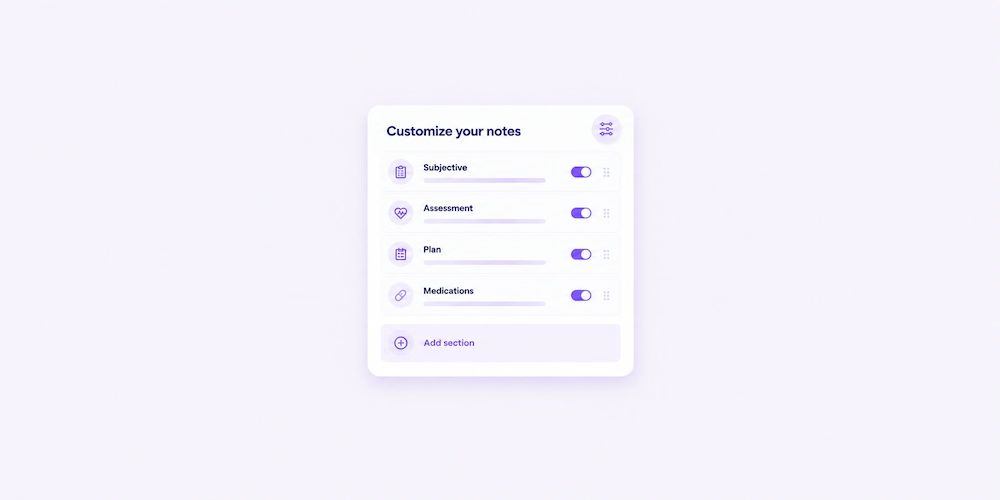
You know how your notes should look — how sections flow, where information goes, and what makes a chart EHR-ready.
An AI scribe should capture everything you need — how you need it — every time.
The good news? It can. All it takes is the right templates, some edits, and a little AI magic.
You deserve notes that sound like you. Let’s dig into all the ways you can personalize Freed.
Start with your specialty
Capture what matters. Make sure that you have your specialty listed in your profile. This helps Freed put your visit in the right clinical context, by:
- Summarizing the conversation
- Filtering out irrelevant information (like casual chit-chat).
- Adding specialty-aware corrections (e.g., changing "stomach bug" to "viral gastroenteritis.")
How to update your specialty

- Click the Profile icon in the bottom left corner
- Click You
- Update your name, title, and select a different medical specialty from the list
- Click Save
Ask Prompted Edits to make changes
Let AI do the work for you with Prompted Edits. Type in any prompt to apply to your entire note.
You can say things like:
- “Shorten the subjective section.”
- “Combine this into a cohesive narrative.”
- “Rewrite in more clinical language.”
- “Add a brief differential.”
Magic edit understands medical context, so the changes stay accurate while matching your style.
How to use Prompted Edits
- Open your note after a visit
- Click the Magic Edit button on the right side of your screen
- Give it instructions (e.g., “remove the patient’s name.”)
- Click Update Note
This will apply your changes throughout the whole note. If you want to save those changes in a template, make sure you’re using a learned template and click Learn Format — learn more below.
💡Learn more about Prompted Edits in our help center.
Edit a learned template
One of the fastest, most powerful ways to customize your note is through Learn Format.
Train Freed on your real edits, then review and adjust an example note in real time.
How to find a learned template
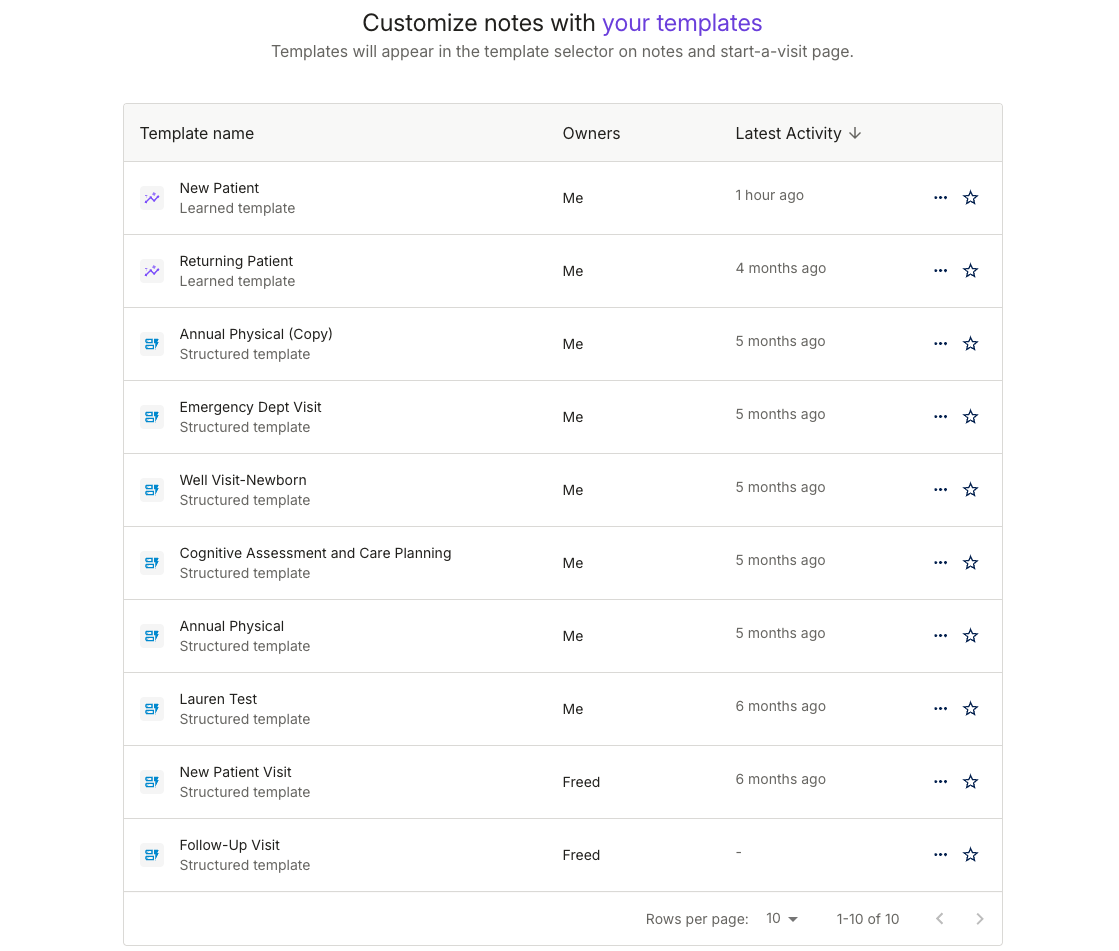
There are two default Learned Templates: New Patient and Returning Patient. Use these as starting points and duplicate as many times as you want to adjust for different patients and needs.
There are two ways to find a learned template:
Through your patient note:
- Open any finished note
- Click the template button
- Choose a template with a purple icon

Through your template library:
- Click Templates on the left sidebar to open the template library
- Select a template with the purple icon
- Click the three-dots, then click Duplicate
How to use a learned template
- How you prefer sections structured
- How long notes should be (e.g., concise or lengthy)
- How you phrase assessments or plans
- Whether you prefer bullet lists, paragraphs, or a combination of both
After a visit, open your learned template to:
- Edit anything in your note
- Click Learn Format – we’ll let you know when Freed’s done learning
- For more specific edits, you can review and update an example note.
💡 Learn more in our help center.
Use an example note
Need more specific changes? Train the learned template further by reviewing and updating an example note. You can:
- Make additional edits to the format or writing style
- Add verbatim text that you want to see in every note
- Add custom instructions to add specific guidelines you want the AI to follow
How to use an example note
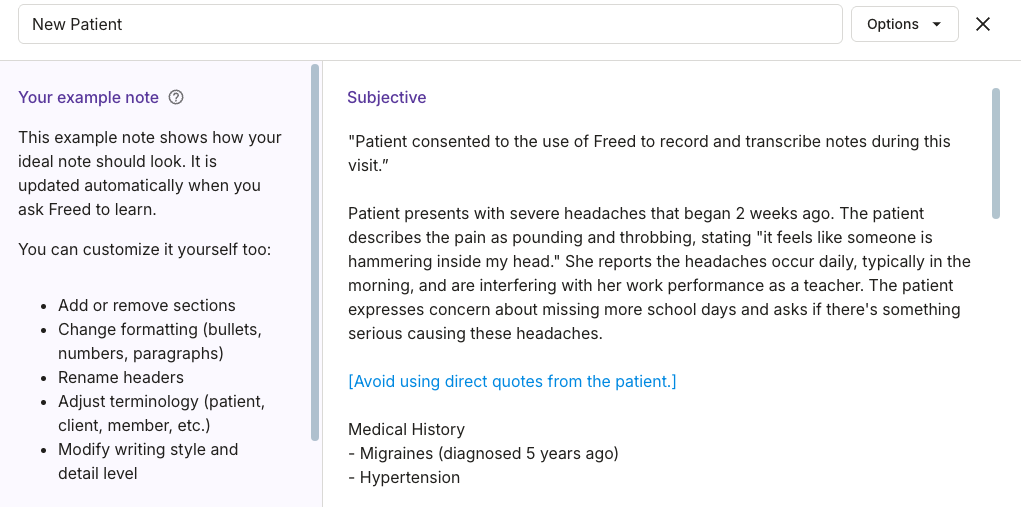
Find an example note by clicking Learn Format or opening a learned template in the template library (see the section above for how to find learned templates).
To update the example note, you can:
- Edit the text directly.
- Add quotation marks around text that you want said verbatim in each note (e.g.,"Patient consented to the use of Freed to record and transcribe notes during this visit”).
- Use brackets to add custom instructions (e.g.,Using a learned template is easy. Just edit a note how you’d like it to look, and save. This trains Freed on your writing preferences and style. Make edits to show:). This will look blue in the example note.
- After you’ve edited and customized, click Save changes.
Or, Opt to build a structured template
Learned templates can probably give you what you need, but we also offer structured templates for groups who need complete control on each part of the note.
You can choose from pre-built templates in the template library, or create your own from scratch with the template builder. This lets you:
- Add, reorder or remove sections
- Share templates across your organization
- Create custom subsections (this is an advanced feature)
How to find a structured template
We’ve pre-built templates for different specialties, treatments, and use cases. Here’s how to find them:
Through your patient note:
- Open any finished note
- Click the template button
- Choose a template with a blue icon
Through your template library:
- Click Templates on the left sidebar to open the template library
- Select a template with the blue icon
- Right-click a template to duplicate and edit a new one
How to use the template builder
To edit a pre-built template, you can:
- Click the Templates icon in the left sidebar.
- Click the template you want to edit
- Click the Duplicate & Edit button in the bottom right corner
To create a new template:
- Click the Templates icon in the left sidebar.
- Click + New Template in the upper right corner
- Click the Duplicate & Edit button in the bottom right corner
To customize a template, you can:
- Reorder subsections by dragging and dropping with the handle icon
- Remove subsections by expanding one and clicking the red trash icon
- Define the style and length settings by selecting options in each subsection
- Toggle sections on or off by clicking the eye icon
- Create custom subsections by writing prompts in brackets
💡Learn how to customize your notes with templates
Personalize now, edit less later
With a few simple tweaks, you’re set up for quick reviews, less rewrites, and stress-free notes.
Start small. Take two minutes today to personalize your template or teach Freed a new format. Future-you — the one leaving the office on time — will be glad you did.
See how Freed can help you write notes your way. Try for free.
FAQs
Frequently asked questions from clinicians and medical practitioners.

Can I customize Freed’s note structure?

Can I still edit notes my way?
Can I customize my notes in Freed?
Does Freed have a free trial?
Can I use Freed on any device?
Q. Does Freed work with telehealth?
How can I get started with Freed?
Does Freed integrate with EHRs and EMRs?



548 Market Street, PMB 95301
San Francisco, CA 94104
Specialties
Compliance & Security
Our technology is HIPAA-compliant, uses industry best practices, and doesn’t store patient recordings.